Overview
Before your computer is migrated to Intune, make sure your web browser data is synchronized with your account.
Browser synchronization protects:
- Bookmarks/Favorites
- Saved passwords
- Browsing history
- Open tabs
- Extensions and settings
After the migration, signing back in to your browser will automatically restore this information.
Microsoft Edge
Sign In to Edge
- Open Microsoft Edge.
- Select the profile icon in the upper-right corner.
- Select Sign In.
- Sign in with your UF account.
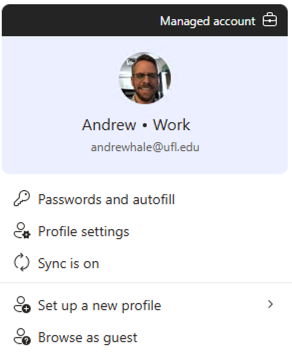
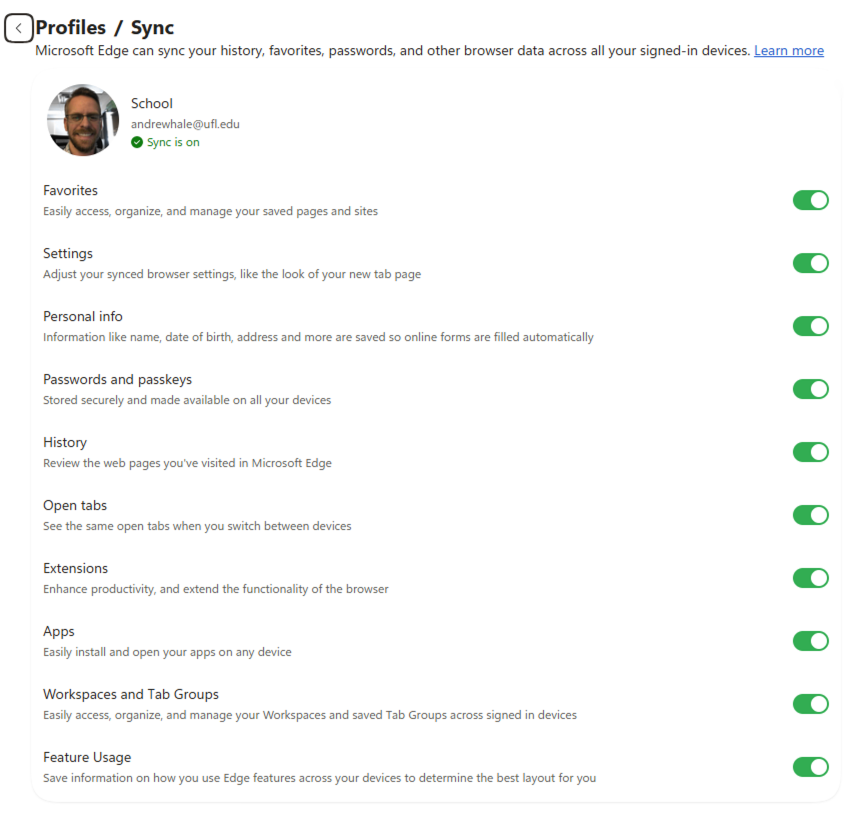
Verify Sync Is Enabled
- Select the profile icon.
- Select Manage Profile Settings.
- Select Sync.
Ensure the following are enabled:
- Favorites
- Passwords
- History
- Settings
- Open Tabs
- Collections (if used)
Confirm Sync Is Working
Visit:
edge://sync-internals/
You should see no synchronization errors.
Google Chrome
Sign In to Chrome
- Open Google Chrome.
- Select the profile icon in the upper-right corner.
- Select Turn On Sync or Sign In.
- Sign in to your UF Google account using your Gatorlink email address (you will be taken to a UF-branded login screen, just like signing in to any other UF-managed service).
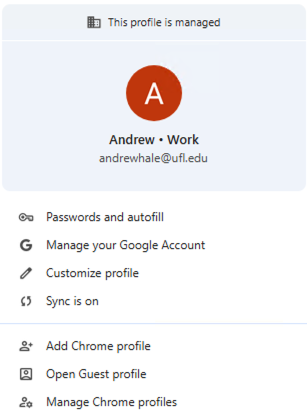
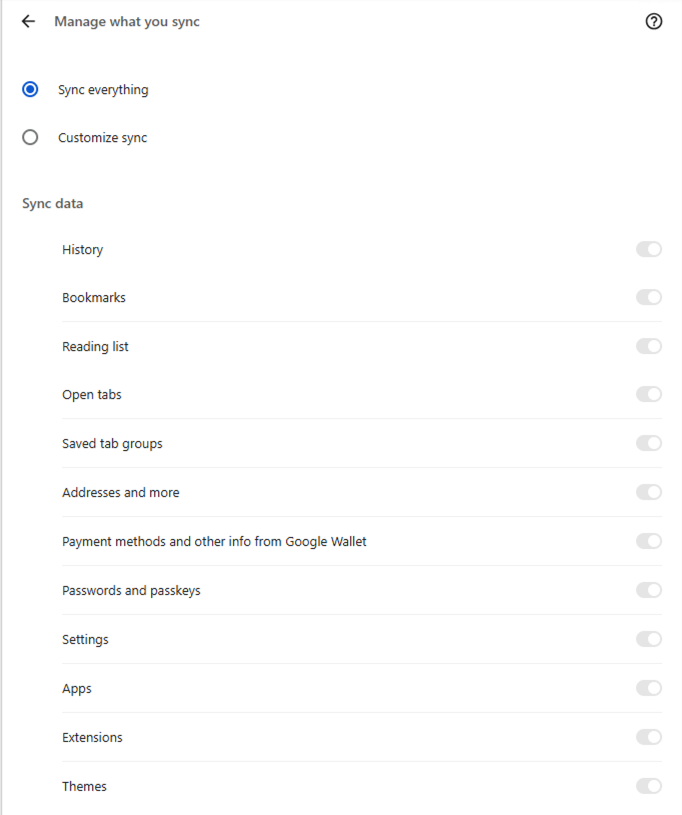
Verify Sync Settings
- Select the profile icon.
- Select Sync is On.
- Select Manage What You Sync.
Choose Sync Everything or ensure that the following are enabled:
- Bookmarks
- Password Manager
- History
- Settings
- Extensions
- Open Tabs
Confirm Sync Status
Type the following into the address bar:
chrome://sync-internals
You should see that synchronization is active.
Mozilla Firefox
Sign In to Firefox
- Open Firefox.
- Select the menu button (☰).
- Select Sign In to Firefox.
- Sign in to your Firefox Account.
If you do not have a Firefox Account, use your UF Gatorlink email address to create one before migration.
Verify Sync Settings
- Open Firefox Menu (☰).
- Select Settings.
- Select Sync.
Ensure synchronization is enabled for:
- Bookmarks
- Passwords
- History
- Open Tabs
- Extensions
- Settings
Confirm Sync Is Working
Within the Sync settings page:
- Select Sync Now.
- Wait for synchronization to complete.
- Verify no errors are reported.
You do not need to do these steps for all three browsers. Follow the steps for whichever browser is your “daily driver”.