Please note: To use this application for making and receiving calls on your UF phone line, you must be a Webex-enabled user.
Search for Webex in your device’s App Store or Play Store and install. The app you need is called ‘Webex’ (do not select the ‘Webex Meetings’ app).
Once installed, open the Webex app and click Sign in. Enter your email address as [Gatorlink Username]@ufl.edu. Once the UF single-sign-on (SSO) screen appears, enter your GatorLink username and password and approve the Duo multi-factor authentication prompt. If this is the first time running the app, you may be prompted to authenticate a second time to connect to phone services.
Provide all permissions requested by the app. This includes allowing access to location services that will be used for 911 location identification once the service becomes available. You may also be asked for additional permissions to services and hardware (mic, camera, etc).
More information can be found on UFIT’s Webex documentation page.
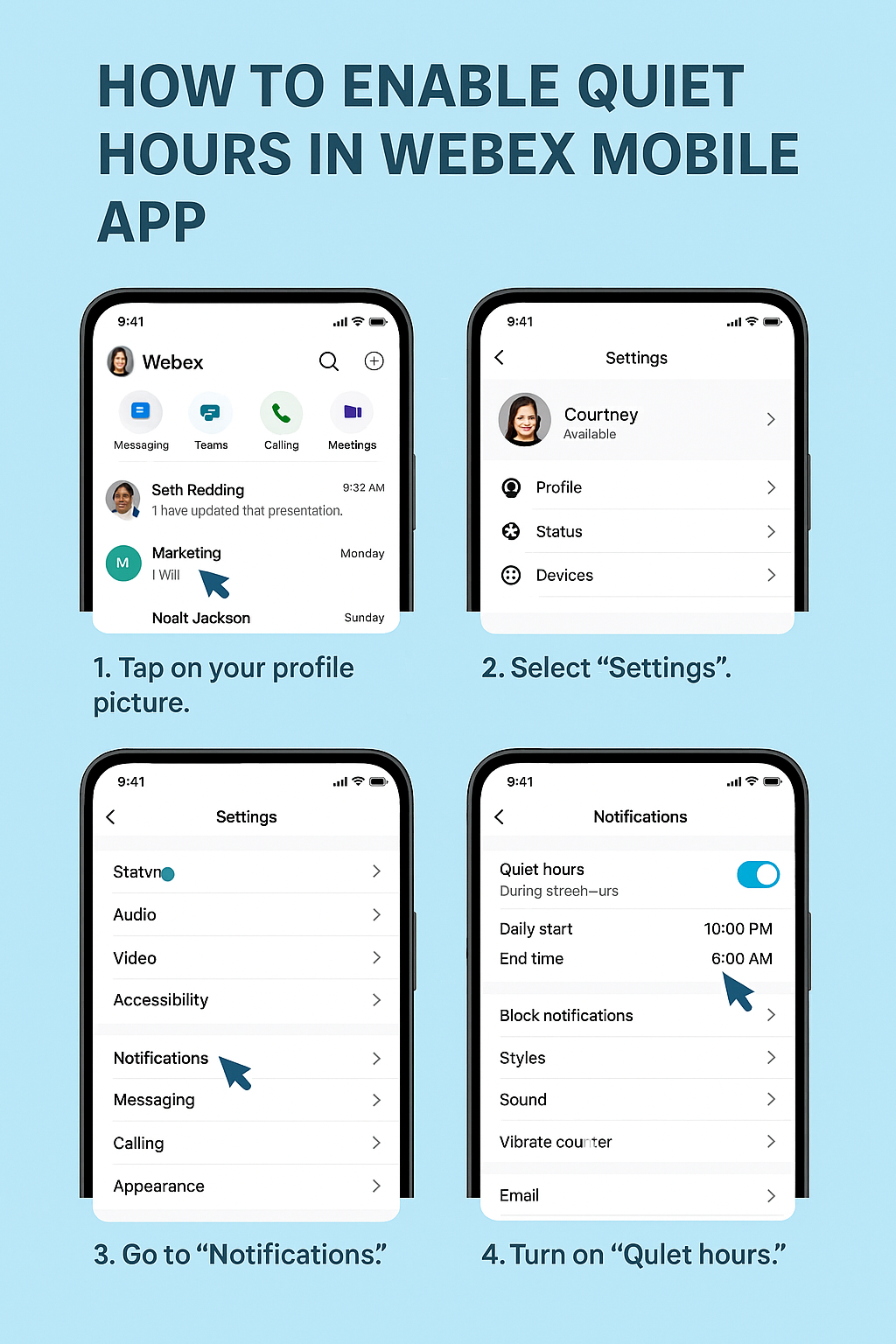
Advanced Tip: If you do use Webex mobile, you can set up ‘Quiet Hours’ in the apps settings so that you can avoid getting calls after normal work hours (if you don’t want to).