Most Engineering faculty and staff do not have the administrative permissions to that are required to uninstall Cisco Jabber. As a result, the best you can do without IT assistance is to prevent it from starting when you login. Here’s how you can do that:
Step 1: Open the Jabber application
Open the Jabber application however you normally do. Most people double-click its icon from the system tray (bottom-right corner of your screen next to the date and time).
Step 2: Open Jabber Settings
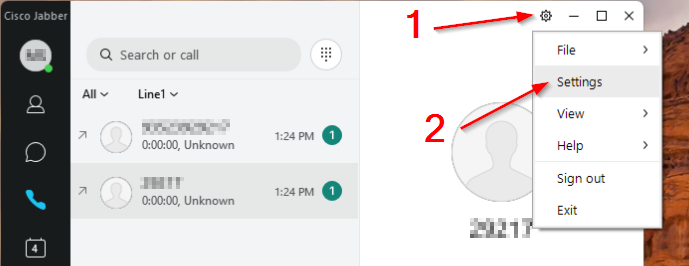
Once Jabber is open, click the Gear icon in the upper-right (1) of the application window and select Settings from the resulting dropdown menu (2).
Step 3: Disable “Start Cisco Jabber when my computer starts”
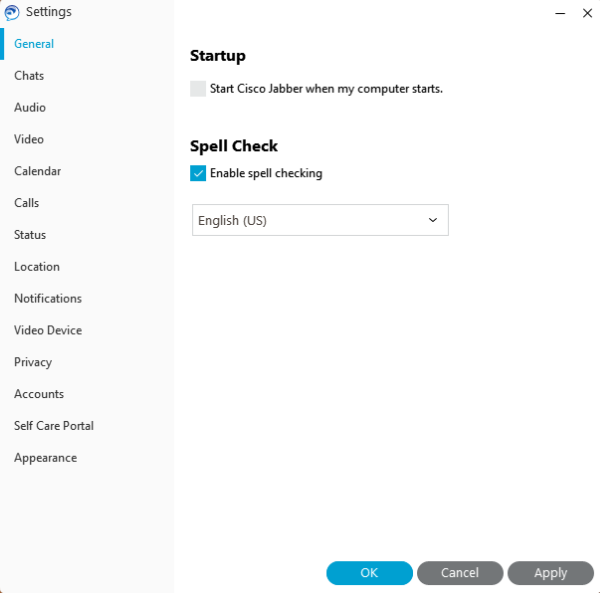
- In the Settings window, go to the General tab.
- Uncheck the box labeled Start Cisco Jabber when Windows starts.
- Click Apply or Ok to save changes.
Step 4: Restart your computer
Restart your computer to confirm Jabber no longer launches automatically. If Jabber still starts automatically, it may have been added to your Windows Startup Apps another way. Contact your local IT for assistance.