Jamf Connect Login is a new application designed to allow a safe and secure login experience for Apple computer users. Its usage for Mac computers will allow any user with a Gatorlink username and password to be able to use any Mac computer while also preventing synchronization issues that could occur while using the previous login system.
During the first time login, there will be a few more steps than usual that will be explained below due to the account migration process. All subsequent logins will follow the typical steps for Gatorlink Authentication only.
For the first time login process you will need an active internet connection. Please go to this section of the article for more information.
Please perform the first-time migration as soon as possible. An extended delay in performing this migration may prevent you from accessing your account.
If you have any issues after reading and following the below steps then please open a support request by clicking the Contact Support button on the side of this article.
Welcome Screen
There will be two possible login screens displayed depending on your internet connection. If there is an active internet connection you will see the below screen. From here please type your in Gatorlink username followed by @ufl.edu.
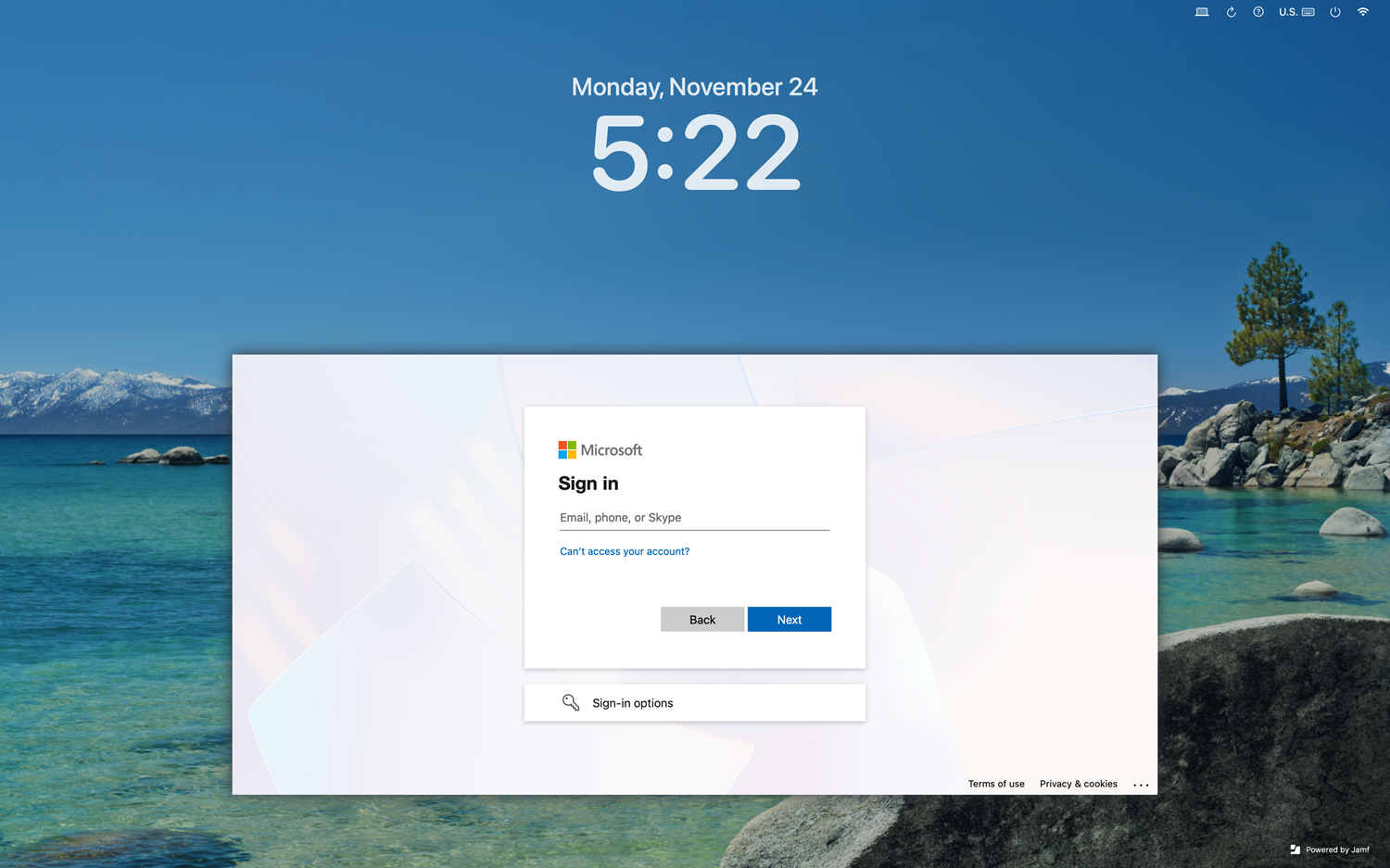
You will then be brought to the familiar Gatorlink Authentication page seen below
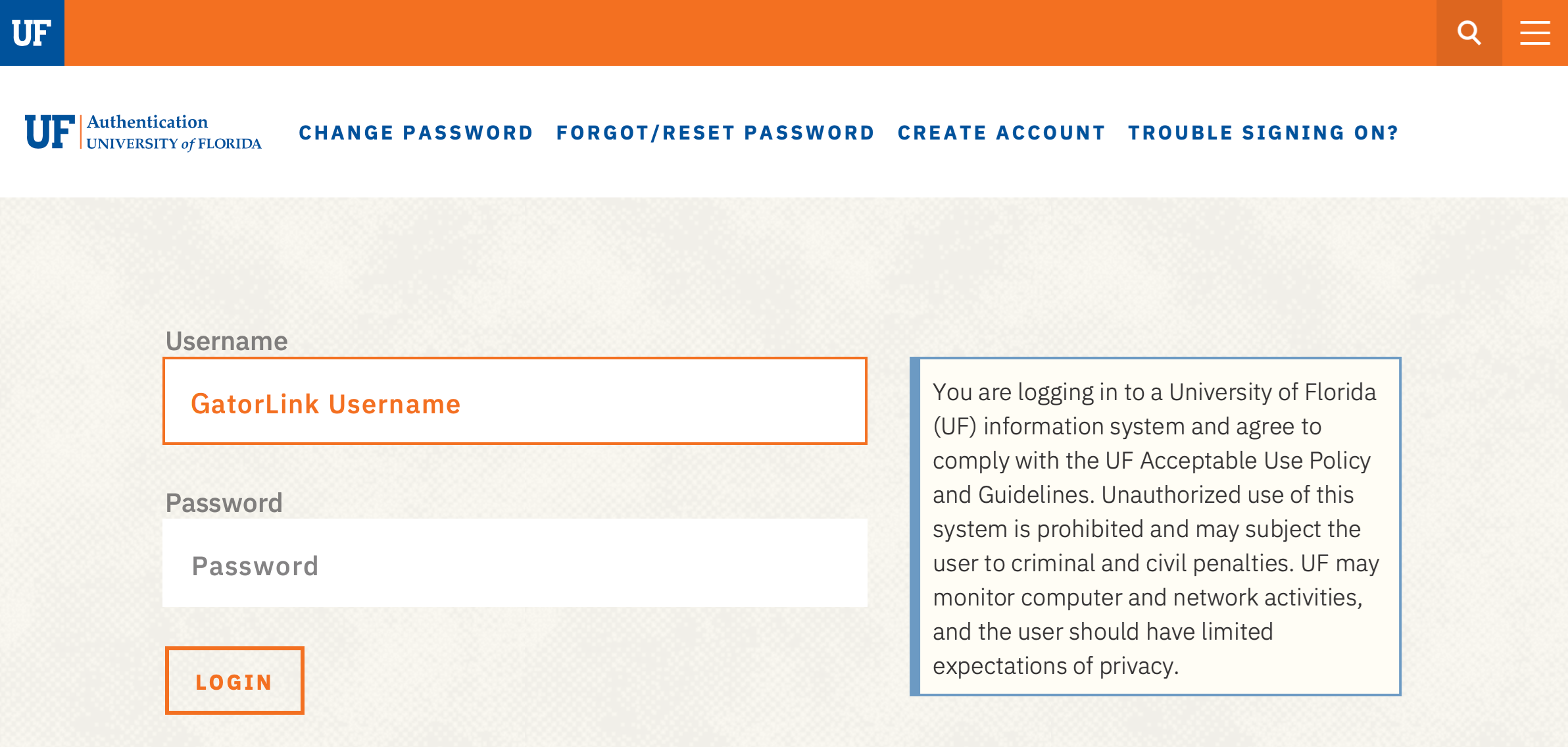
After signing in, you will be asked to authenticate via the Duo authentication app. Due to various limitations, Duo will always ask if the device is yours regardless of which option you select.
Upon success, you will also see the below image at the top of your screen indicating that you’re at the account migration step.
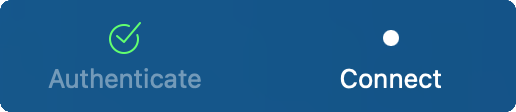
Account Migration
At the bottom of your screen you will see one of two different menus. These will depend on whether your previous Mac account (local account) username is the same as your Gatorlink username.
Additionally, if your local username and password are already identical to your Gatorlink username and password then you will automatically be logged in bypassing the below menus.
Identical Gatorlink and Local Username
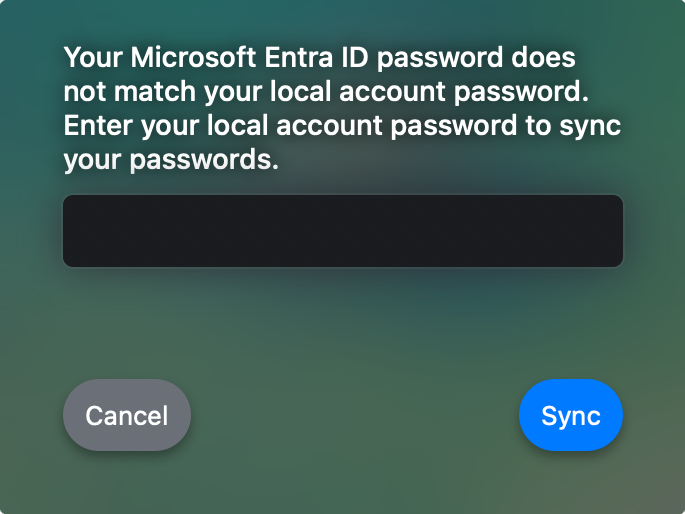
If you see the above, type in your old local account password you previously used to log into your Mac computer before Jamf Connect Login was installed. Once you press the sync button you will be logged in and your old account will be migrated. From then on, you will need to use your current Gatorlink password to login or unlock the Mac.
Mismatched Gatorlink and Local Username
Once you sync to an existing account, or create a new account, your Gatorlink will be permanently linked so make sure to select only YOUR account in the next step or you will need IT support.
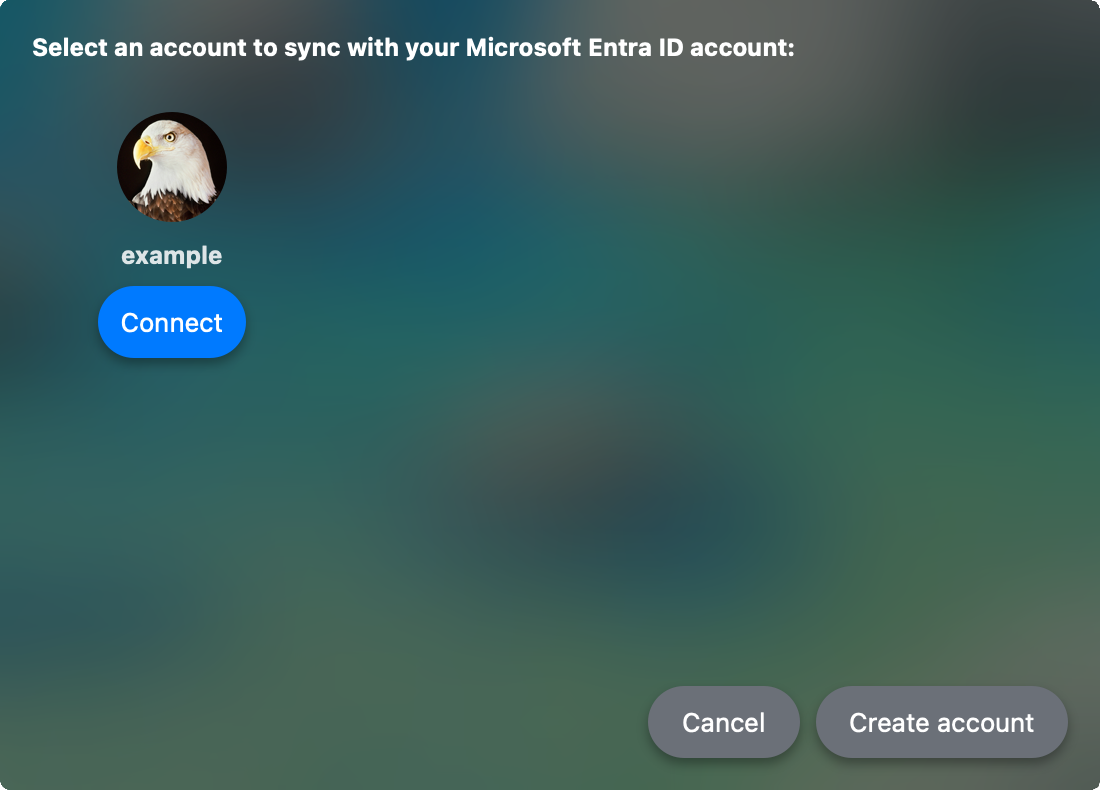
If your local username is different from your Gatorlink then you will see the above menu. Please select the ‘Connect’ button underneath YOUR local Mac account which will then prompt you to enter the local account password. It is the password you previously used to log into your Mac account before Jamf Connect Login was installed. You can also create a new account at this step, but the account will be a standard user account without administrator privileges.
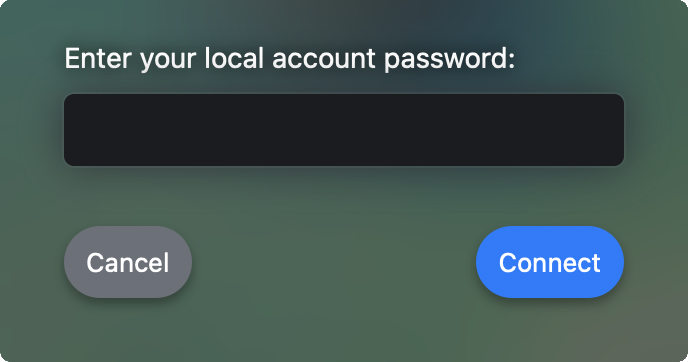
After completing the migration or account creation you will only need to know your Gatorlink username and password for any future log ins.
For example, if you lock the Mac (Ctrl + ⌘ + Q), or have FileVault (disk encryption) enabled and restart/shutdown the computer, then you will need to enter your Gatorlink password to unlock the machine.
Troubleshooting
Check WiFi connection
If you have a wired connection on campus through a docking station, USB to Ethernet adapter, or directly connected Ethernet cable then you will not need WiFi to complete the migration process and should see the Welcome Screen automatically.
If you do not have a wired connection then check if you have internet by clicking on WiFi icon in the top right corner.

You will not be able to fully connect to EduRoam, UFGetOnline, or UFGuest from the Login screen because of limitations of macOS. Please select a different wireless network instead such as a WiFi hotspot or your own network at home.
If you need further assistance then please contact your departmental IT group or submit a ticket.
Reset to Beginning
If you make a mistake while typing your Gatorlink credentials, such as forgetting the @ufl.edu or mistyping your Gatorlink account name, then you will see an error similar to the below image.

If this happens, please click the refresh button in the top right corner to reset to the Welcome Screen.

No Internet Available
If you have no internet then the screen will look similar to the regular macOS login screen as seen below
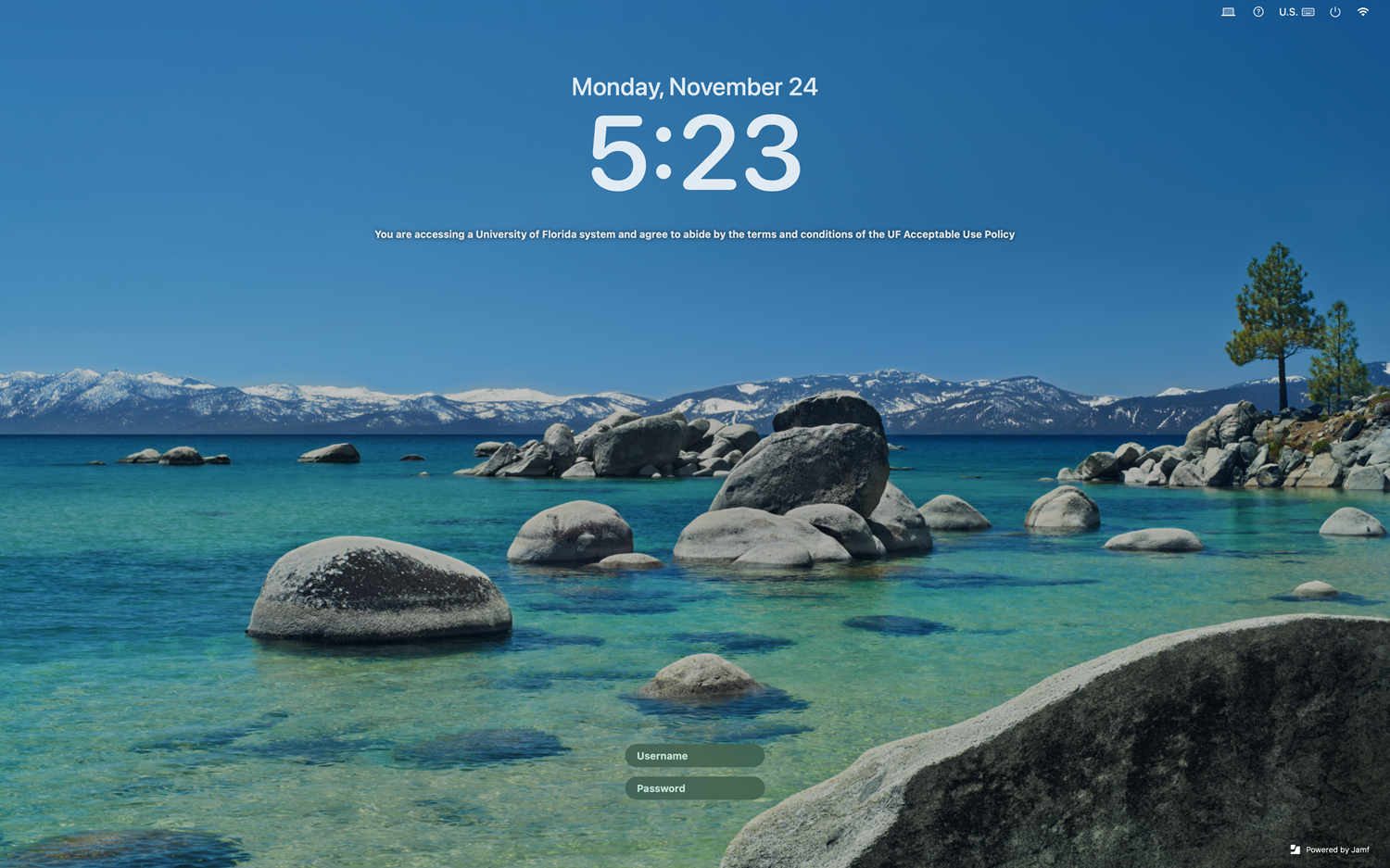
Note the UF Acceptable Use Policy underneath the clock and “Powered by Jamf” in the lower right corner which indicates that Jamf Connect Login has been installed.
It may also have the below warning.

You will need to log into your local account by using the your old username and old password from before Jamf Connect Login was installed. After you log in this way, you will be greeted by the Jamf Connect Menu.
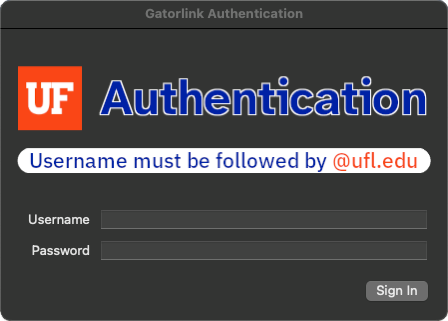
Syncing your Gatorlink account via the Jamf Connect Menu will not complete the migration process even though it will update the local account password. You must complete the migration process at a later time even if you sync your Gatorlink password via the Jamf Connect Menu.
For more info on Jamf Connect Menu please follow the link.
If you need further help then please click here.