Overview
Before your computer is migrated to Intune, ensure your files are backed up to Microsoft OneDrive.
Files stored in OneDrive can be automatically restored to your new or updated computer after migration. Files that exist only on your local computer will be lost if they are not backed up.
This article will help you:
- Sign in to OneDrive
- Verify OneDrive is syncing
- Back up your Desktop, Documents, and Pictures folders
- Confirm your files are safely stored in the cloud
Why Is This Important?
Many users save important files on their:
- Desktop
- Documents folder
- Pictures folder
If these folders are not backed up to OneDrive, your files may not automatically transfer to your migrated computer.
By enabling OneDrive backup, your files follow you wherever you sign in.
Step 1: Verify OneDrive Is Installed and Running
- Look for the OneDrive cloud icon in the Windows system tray near the clock.
- Blue cloud = Signed in with your UF account

- Gray crossed-out cloud = Not signed in.

- Cloud with sync arrows = Syncing

If you do not see the OneDrive icon:
- Select Start
- Search for OneDrive
- Open the application
Step 2: Sign In to OneDrive
- Open OneDrive.
- Enter your UF email address.
- Complete the University of Florida sign-in process.
- Complete Duo authentication if prompted.
After signing in, OneDrive will begin syncing your files.
Step 3: Verify Folder Backup Is Enabled
- Select the OneDrive cloud icon in the taskbar.
- Select the gear icon.
- Select Settings.
- Select Sync and Backup.
- Select Manage Backup.
You should see the following folders:
- Desktop
- Documents
- Pictures
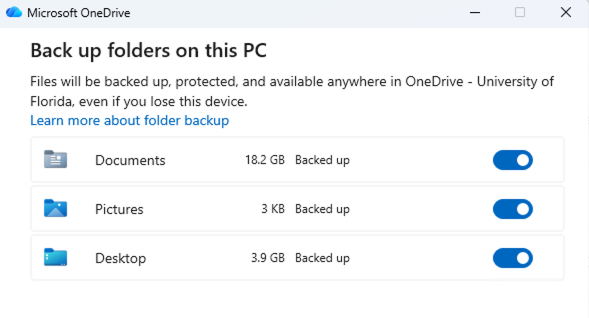
Ensure each folder shows Backed Up.
If a folder is not being backed up:
- Select the folder.
- Choose Start Backup.
- Allow OneDrive to complete the process.
Step 4: Verify Sync Status
Open File Explorer and locate your OneDrive folder.
You should see cloud status icons beside your files:
| Icon | Meaning |
|---|---|
| Blue Cloud | File exists in OneDrive and can be downloaded when needed |
| Green Checkmark | The file is downloaded and available offline |
| Circular Arrows | Currently syncing |
Allow syncing to complete before your migration appointment.
Step 5: Confirm Your Files Are in OneDrive
To verify your files are backed up:
- Open a browser.
- Go to Microsoft 365.
- Sign in with your UF account.
- Open OneDrive.
You should see your files and folders available online.
Verify important folders such as:
- Desktop
- Documents
- Research files
- Project files
- Teaching materials
Common Issues
OneDrive Says “Not Signed In”
Select the OneDrive icon and complete the sign-in process using your UF account.
Files Are Still Syncing
Large amounts of data may take time to upload.
Leave your computer powered on and connected to the internet until syncing completes.
Missing Files
Check whether the files are located outside your Desktop, Documents, Pictures, or OneDrive folders.
Files stored elsewhere on the computer may need to be manually moved into OneDrive before migration.
Ready for Migration?
Your files are ready when:
✅ You are signed into OneDrive
✅ Desktop backup is enabled
✅ Documents backup is enabled
✅ Pictures backup is enabled
✅ Sync has completed successfully
✅ Your files are visible in OneDrive online