Please note, the unified experience of Outlook “new” means that these instructions may work in OWA and MacOS versions of Outlook.
Step 1
From the File menu choose Account Info to open the Settings window to the Your accounts page.
Step 2
Choose the Shared with me tab and click the +Add button.

Step 3
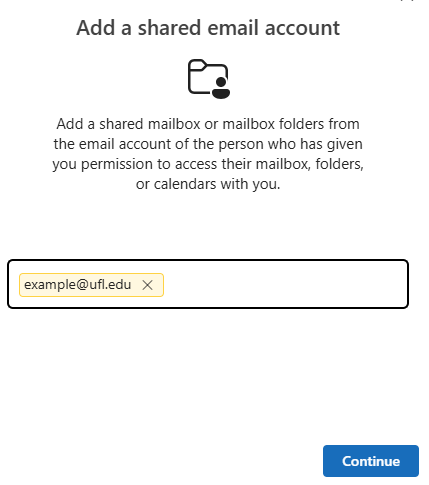
In the Add a shared email account type in the email address, displayname, or username/alias of the shared mailbox. In some instances, the interface will complete and show search results in others, it wont.
For instance, in the screenshot to the left, the example@ufl.edu address was not found. The address can still be entered and the Continue button clicked. Your access will be granted if it is a valid mailbox that you have permissions to access.
Step 4
Upon success you’ll get a message that “Shared email account added” with a green checkmark icon. You may be prompted to restart Outlook. You can choose to restart later and continue to use your mailbox but the connection to the shared mailbox may not complete until you restart.
