A ticketing system helps ensure your request is received, tracked, and resolved efficiently. Key benefits include:
- Prevents requests from getting lost — tickets are logged in a searchable system rather than an individual inbox.
- Enables faster support — anyone in each Engineering IT group can view and work tickets, so the first available staff member can assist.
- Provides clear status and history — tickets move through statuses (e.g., New, In Progress, On Hold, Resolved) with timestamps and notes.
The University’s ticketing system is TeamDynamix (TDX). While TDX supports many functions across UFIT, Engineering IT groups primarily use it for ticket tracking and communication.
TDX email notifications can look busy, and the message template is not customizable at the college/department level. This short guide highlights the one section you typically need and how to reply.
If you’re ever unsure whether a TDX message requires a reply (or where to type it), the simplified example below shows what to look for.
Example: What the Process Looks Like
Step 1: Customer Emails Eng-IT
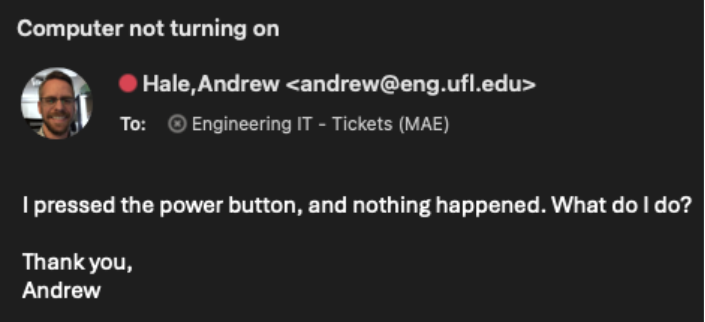
Although there is an online form here on it.eng.ufl.edu to submit a ticket to your local IT team, the easiest way to submit a request is usually email: support@<dept>.ufl.edu. In the example above, I am telling MAE IT Support that my computer will not turn on.
Step 2: Eng-IT Responds
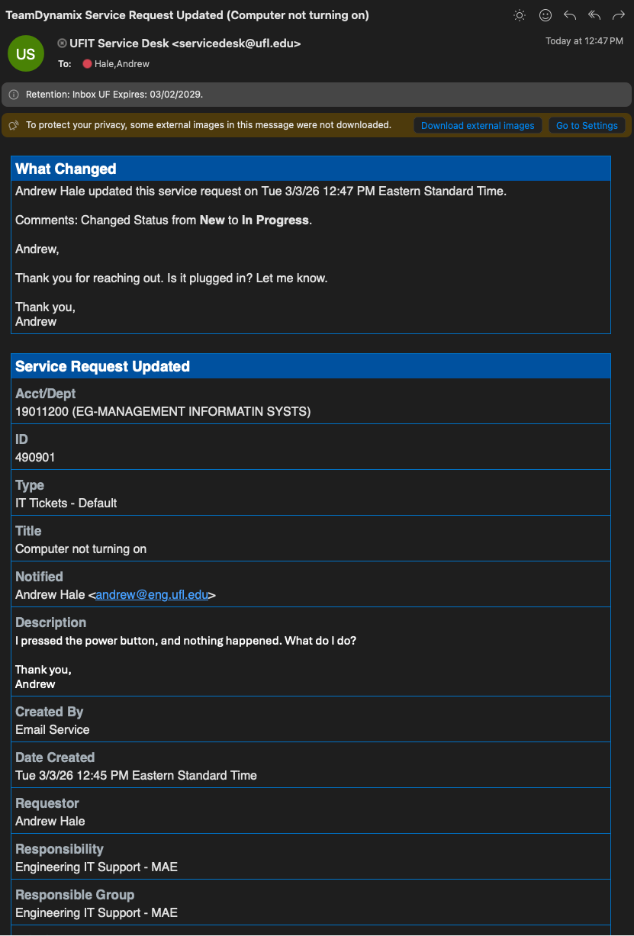
When Eng-IT updates your ticket, you will receive an email like the one shown above. It contains a lot of detail, but the main area to read is What Changed at the top. This is where you will see the latest update, any questions from Eng-IT, and status changes (for example, from New to In Progress)
The Service Request Updated section summarizes the original ticket (department, ticket number, title, etc.). If you need context, check the Description; otherwise, you can usually focus on What Changed.
Step 3: Customer Replies to Provide Additional Information
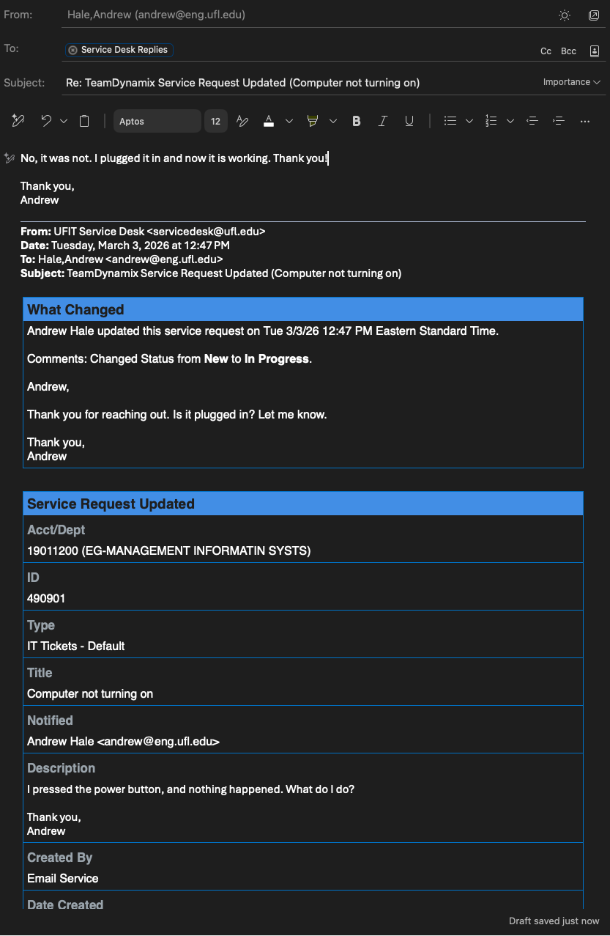
To respond, simply reply to the email as you normally would. In the To: field, you will see the Service Desk Reply address. Replying sends your message back to the ticket so the Eng-IT Team can see it. IMPORTANT: Do not delete any of the message body. There are codes at the bottom that tell TDX which ticket to add the new information to.
Step 4: Eng-IT Resolves the Ticket
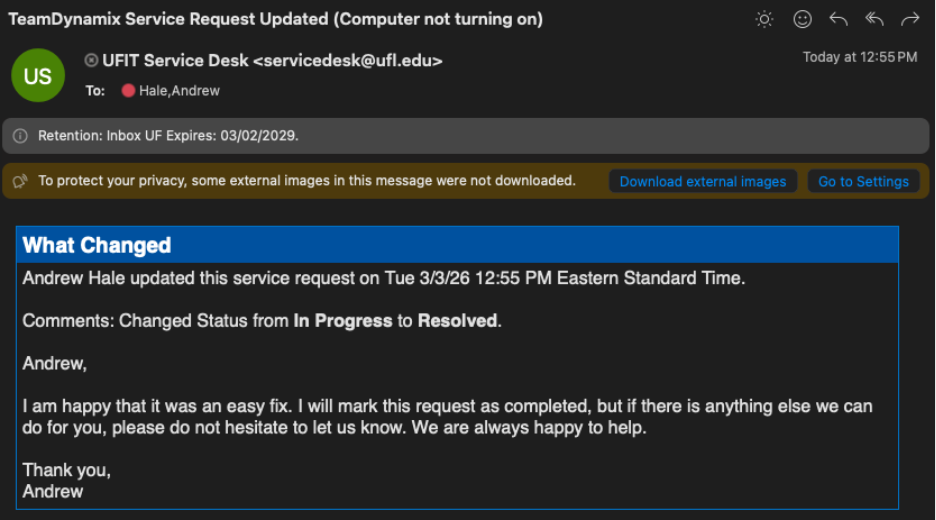
If the issue is resolved, Eng-IT will complete the ticket and you will see a status change (for example, from In Progress to Resolved).
Conclusion
Most requests are more complex than this example, and we may follow-up with clarifying questions or request additional details to troubleshoot your issue effectively.
We appreciate your timely replies. Responses help us resolve issues faster and reduce back-and-forth. If you are not sure whether a message needs a response, feel free to reply and ask.
To see a list of all the tickets you have submitted, you can go to https://ufl.teamdynamix.com/TDClient/33/IT-Portal/Requests/TicketRequests/.
As always, if you have any questions, or if there is anything we can do to help, please reach out to your local Eng-IT group. We are always happy to help.